Quick Start Tour

Learn the basics of Logfile Expert in just a few minutes

Welcome to Logfile Expert

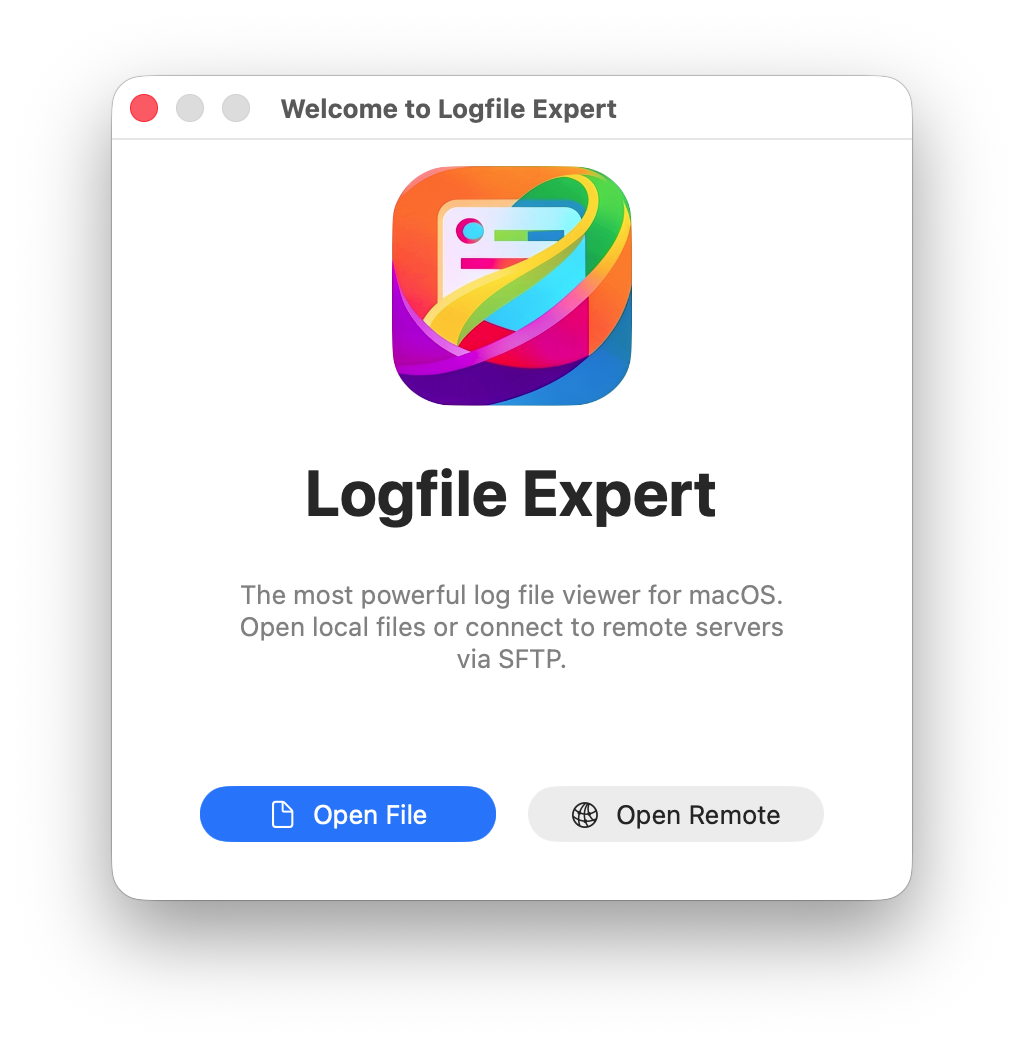
When you launch Logfile Expert, the Welcome dialog greets you with two options:

  • Open File: Browse your Mac to open a local log file
  • Open Remote: Connect to a remote server via SFTP to open a log file

You can also open files anytime via the File menu or by pressing ⌘O for local files and ⌘⇧O for remote files.

Welcome dialog

The Main Window

Once a log file is opened, Logfile Expert parses it and displays all entries in a structured table:

  • Toolbar: Tail mode toggle, mark read, refresh, format selection, auto-fit, filter, export, and search
  • Column Headers: Each parsed field (Timestamp, Level, Host, Service, PID, etc.) gets its own sortable column
  • Color Coding: Errors and warnings are highlighted with distinct colors for quick identification
  • Status Bar: Shows the total entry count and filter status at the bottom

Click any column header to sort. New entries arriving via tail mode are highlighted with a grouped color.
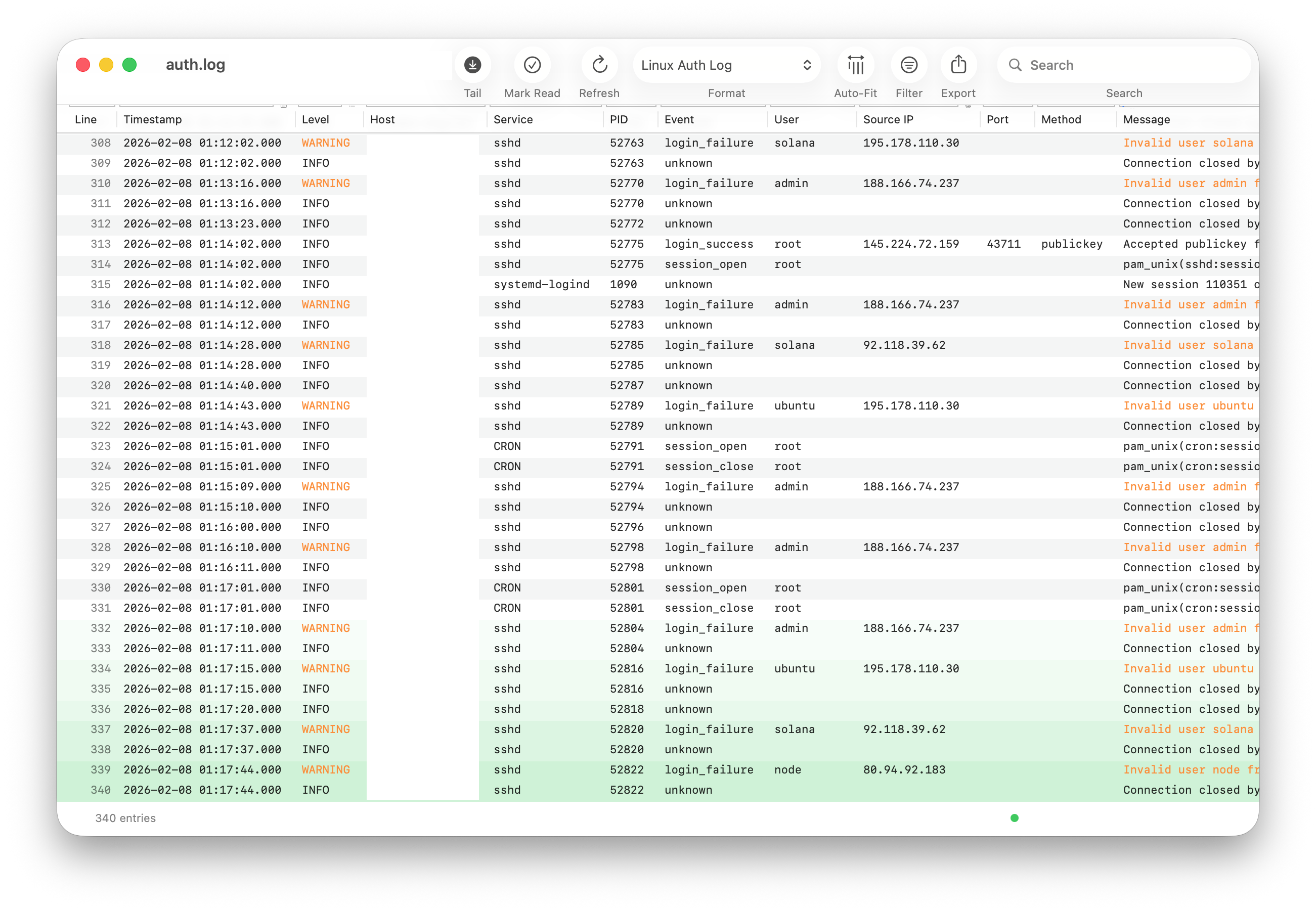
Main window with log entries

Automatic Format Detection

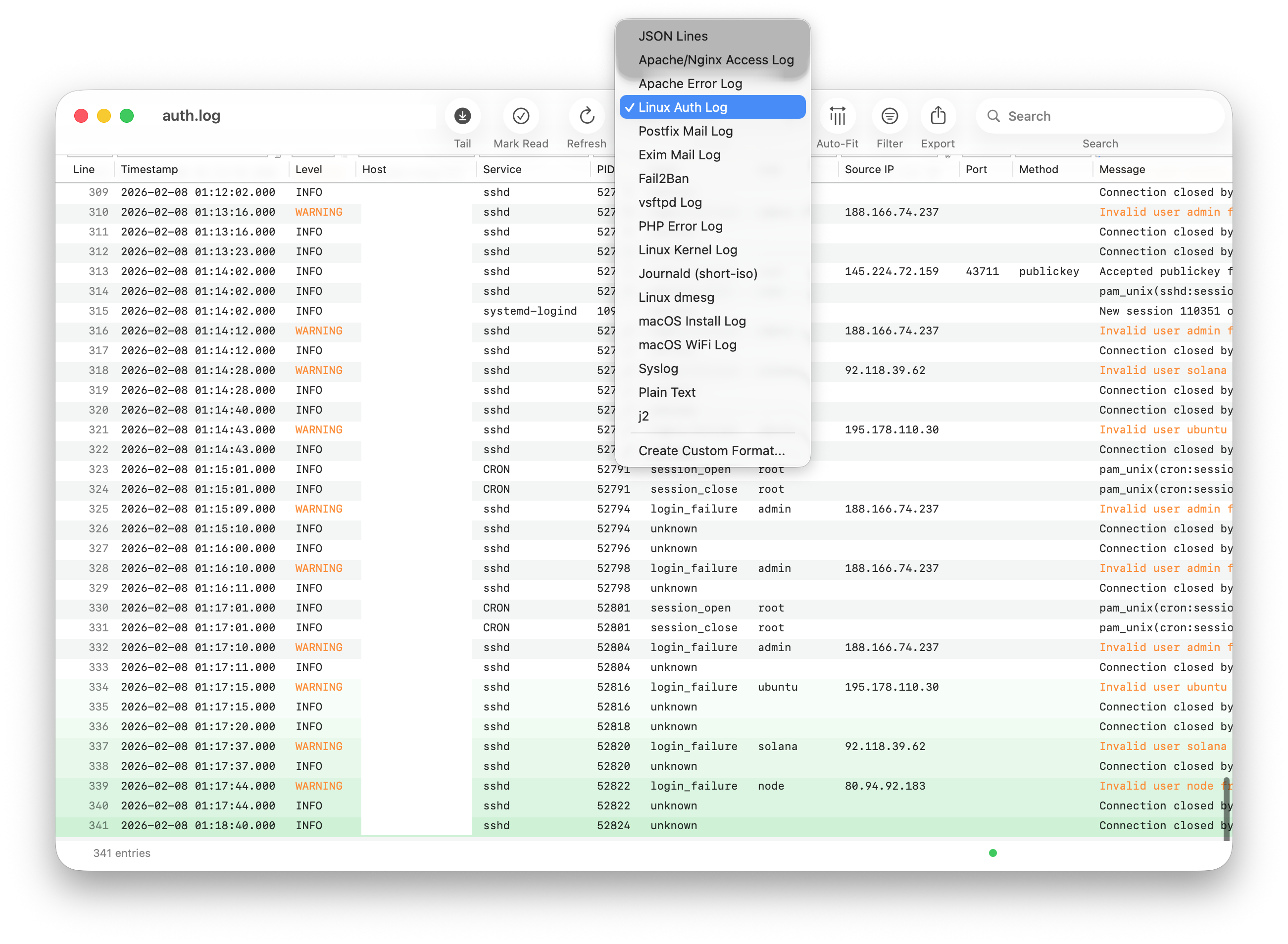
Logfile Expert automatically detects the log format when you open a file. If the format isn't recognized or you want to switch manually, click the format dropdown in the toolbar.

Built-in formats include:

  • Web servers: Apache/nginx access logs, Apache error logs
  • System logs: Syslog, auth log, kernel log, dmesg, journald
  • macOS logs: Install log, WiFi log
  • Application logs: JSON Lines, Postfix, Exim, Fail2ban, PHP errors, vsftpd
  • Generic: Plain text

At the bottom of the dropdown, you'll also find Create Custom Format... to define your own parser.

Format selection dropdown

Powerful Filtering

Logfile Expert provides column-specific filters directly below the column headers. Type in any column's filter field to instantly narrow down results.

For typed columns, small icon buttons next to the filter fields open specialized filter popovers:

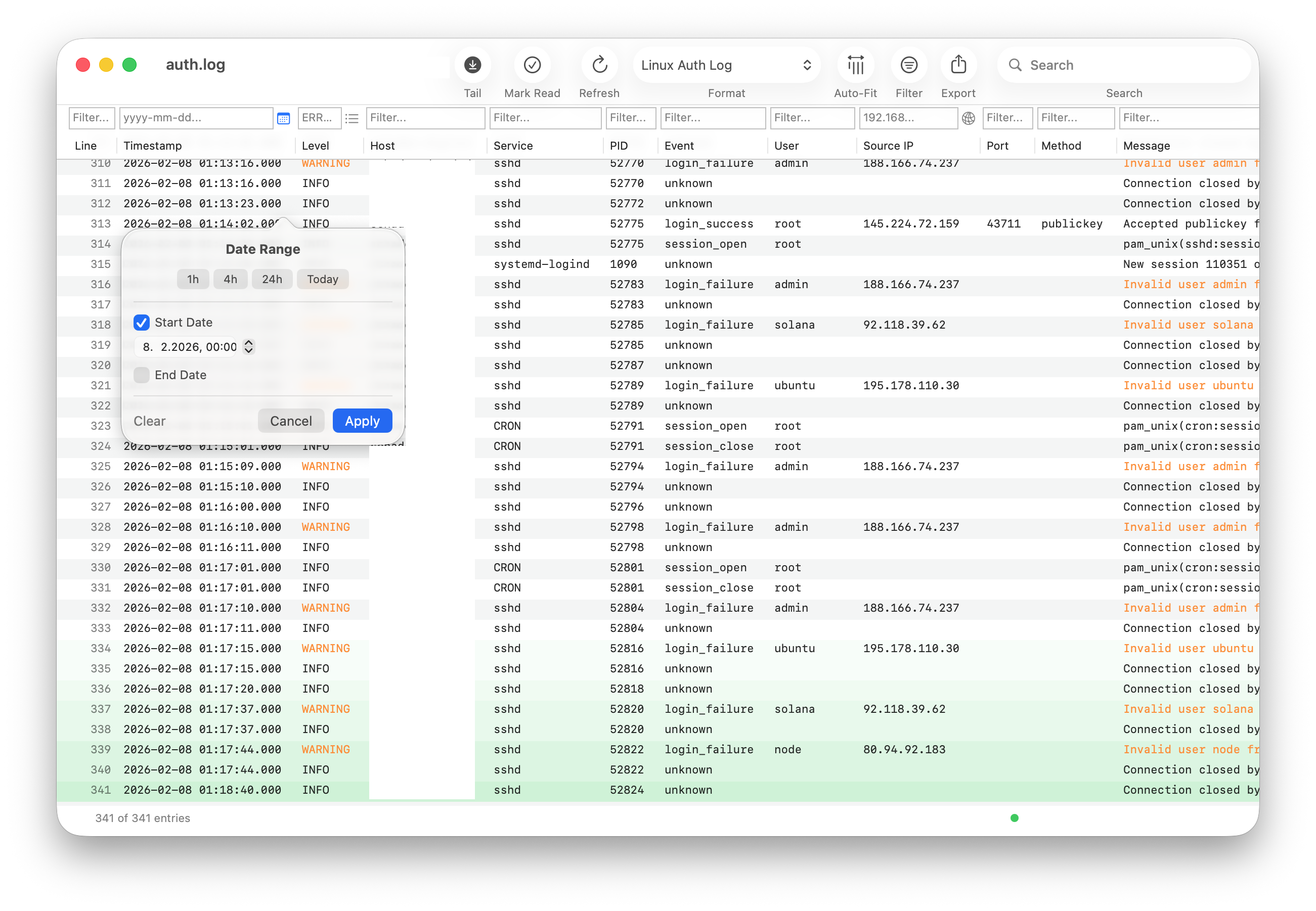
  • Date Range: Filter by time range with quick presets (1h, 4h, 24h, Today) or custom start/end dates
  • Log Level: Toggle individual log levels with All/None shortcuts
  • IP Address: Filter by specific IPs or CIDR network ranges, with include or exclude mode

All filters combine with AND logic. The status bar shows the filtered count. Active filter buttons are highlighted in blue.

Date range filter popover

Custom Log Formats

One of Logfile Expert's most powerful features is the ability to define custom log format parsers for any log file your applications produce.

The custom format editor provides two approaches:

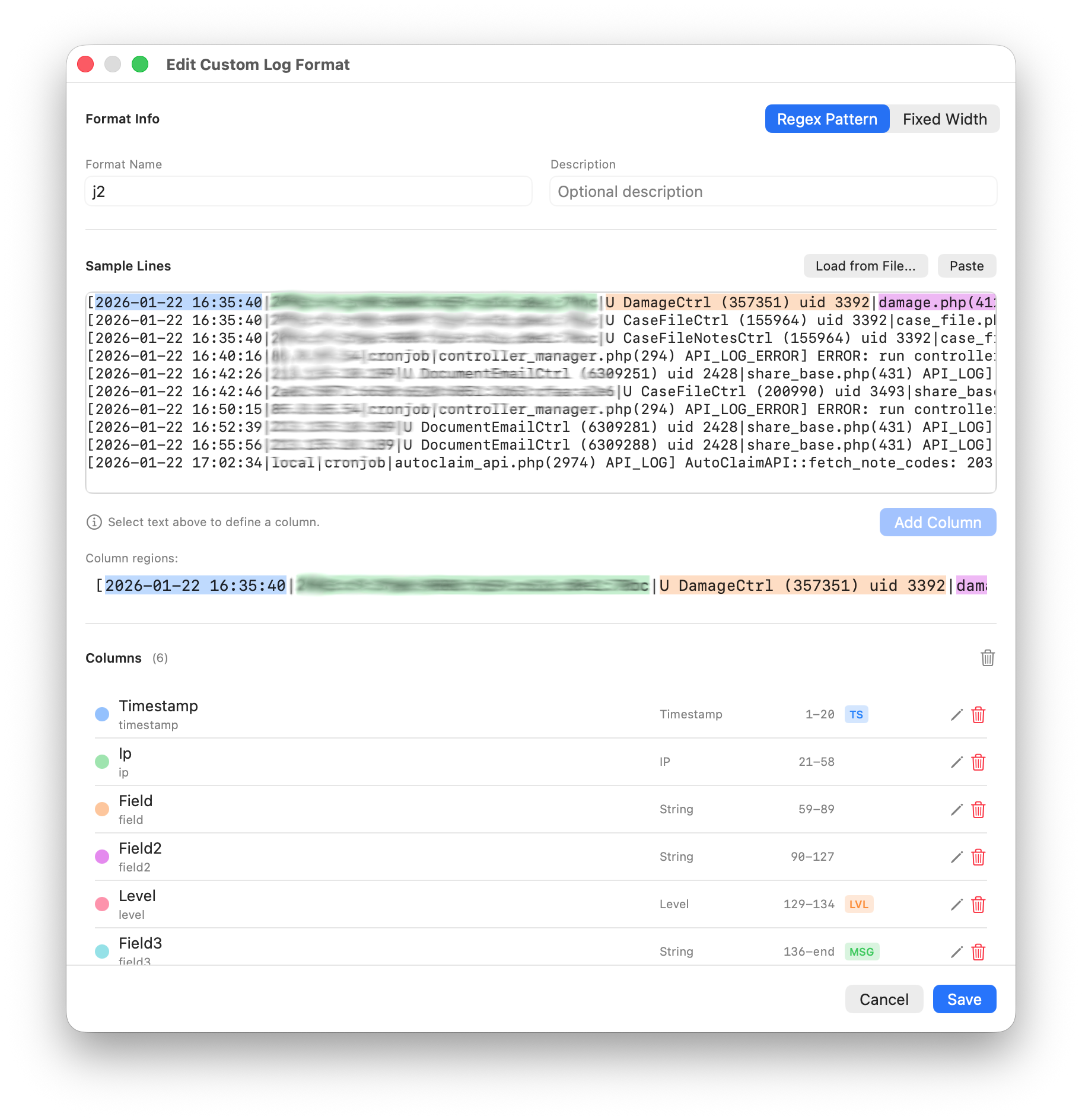
  • Regex Pattern mode: Paste sample log lines, then visually select text regions to define columns. Logfile Expert generates the regex pattern automatically.
  • Fixed Width mode: Define columns by character positions for fixed-width log formats.

Each column can be assigned a type (Timestamp, IP, Level, String) which enables the corresponding specialized filters. A live preview table shows how your pattern parses the sample data, with a success rate indicator.

For advanced users, the Use custom regex option lets you edit the generated regex pattern directly, using named capture groups that match your column names.

Custom format editor - column definition

Remote File Access via SFTP

Monitor log files on remote servers without manual downloads or SSH command-line access:

  • New Connection: Enter hostname, port, username, and choose between password or SSH key authentication. Optionally set a default directory.
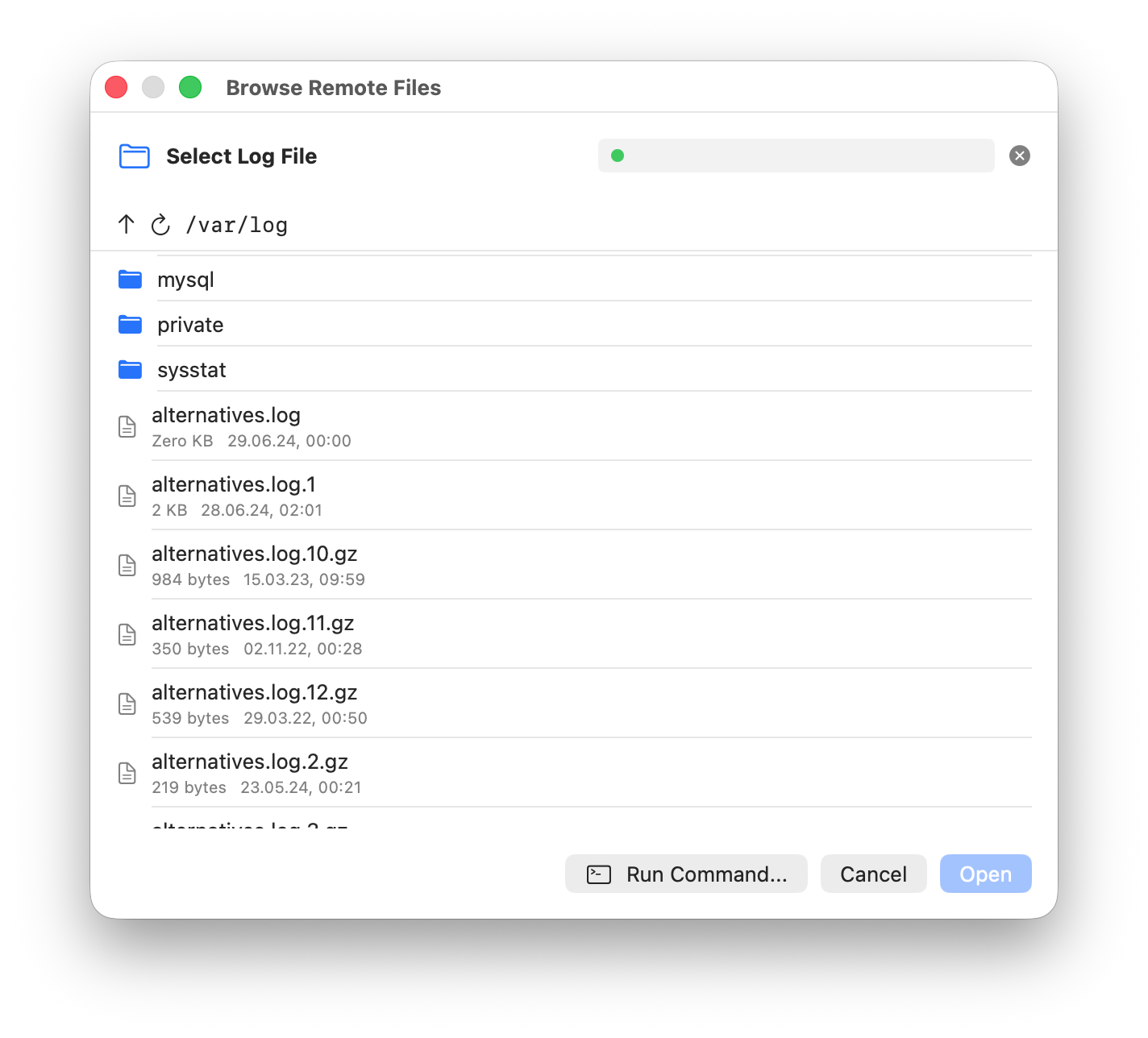
  • Browse Remote Files: Navigate the remote filesystem with a familiar file browser. Folders and files are listed with sizes and dates.
  • Run Command: Execute a command on the remote server directly from the file browser.
  • Live Monitoring: Tail mode works for remote files too, automatically fetching new entries at configurable intervals.

Saved connections are managed in Preferences under the Connections tab, where you can also configure max file size limits and reconnect settings.

Remote file browser

Next Steps

Ready to dive deeper?

Full Documentation

Explore detailed documentation covering all features and advanced usage.

Read Documentation

Get Support

Have questions or need help? Our support team is here for you.

Get Support

Download Now

Ready to start analyzing your logs? Download from the App Store.

Download