Overview
If your log format isn't supported out of the box, you can define a custom parser. Custom formats let you parse any log format your applications produce, with full support for typed columns and specialized filters.
There are two ways to open the custom format editor:
- Select Create Custom Format... from the Format dropdown in the toolbar
- Open Preferences → Custom Formats and click +
The Format Editor
The custom format editor dialog lets you define how log lines are split into columns.
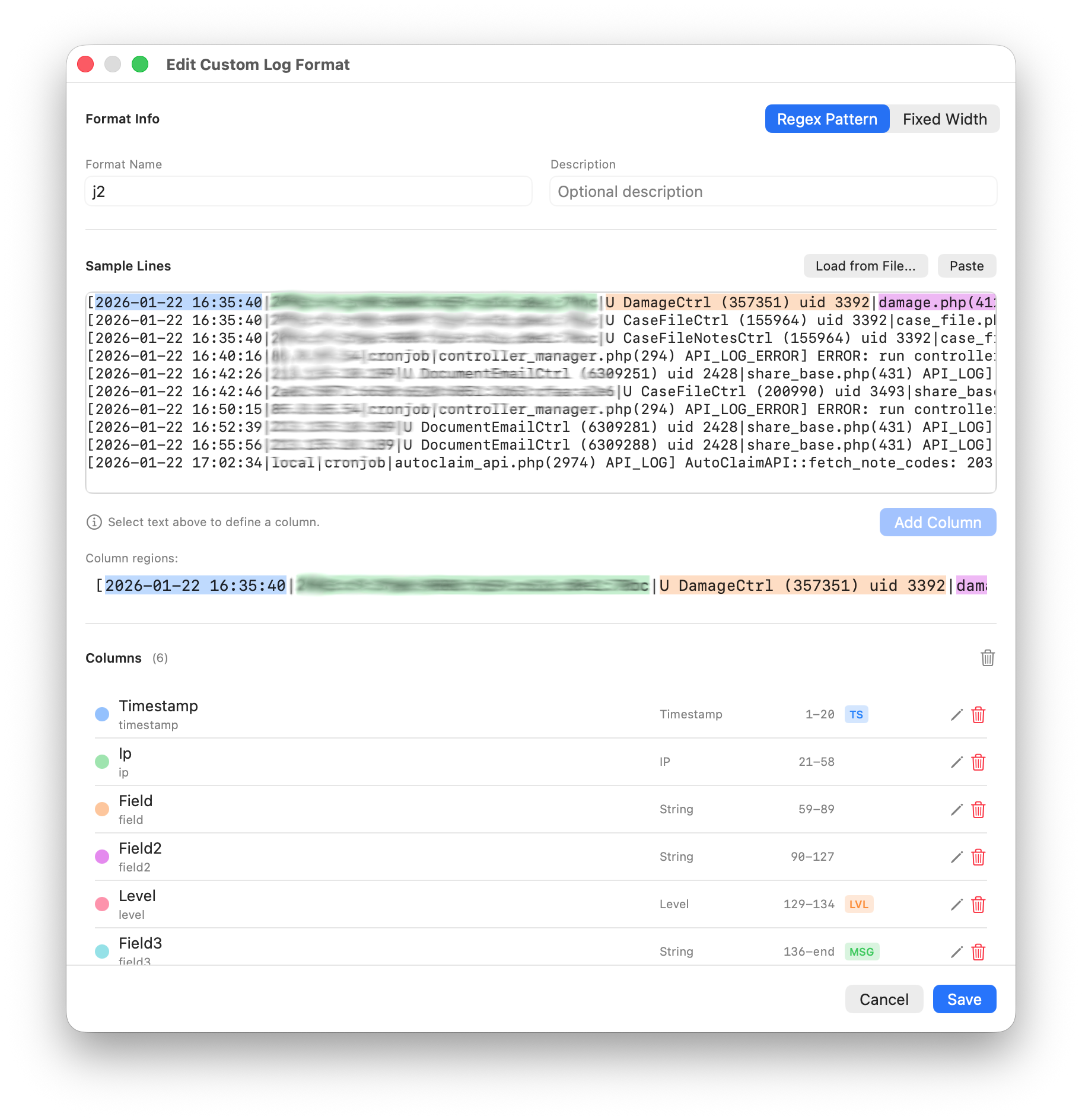
Format Info
At the top of the dialog, enter a Format Name and an optional Description. Choose between two parsing modes:
- Regex Pattern: Define columns by selecting text regions in a sample line. Logfile Expert generates the regex automatically.
- Fixed Width: Define columns by character positions for fixed-width log formats.
Sample Lines
The Sample Lines area contains example log lines that are used for column definition and live preview. You can:
- Paste log lines directly into the text area
- Click Load from File... to load lines from a log file
- Click Paste to insert from the clipboard
The first sample line is shown in the Column regions bar below, where you visually define column boundaries.
Defining Columns
In Regex Pattern mode, select a portion of text in the first sample line. The selected region is highlighted in the column regions bar. Click Add Column to create a new column from the selection.
Each column appears in the Columns list with the following properties:
- Name: The column header name (click to edit)
- Type: The column data type, shown as a badge (TS, IP, LVL, STR)
- Character range: The start and end positions in the sample line
- Edit button: Modify the column name and type
- Delete button: Remove the column
Columns can be reordered by dragging. The order in the list determines the order in the parsed output table.
Column Types
Assigning the correct column type enables specialized filter features:
- Timestamp (TS): Enables date/time range filtering with the date picker popover. Logfile Expert automatically detects the timestamp format.
- IP: Enables IP address and CIDR network filtering
- Level (LVL): Enables log level filtering with the level picker popover
- String (STR): General text content with text-based column filtering
Live Preview
The bottom section of the editor shows a live preview of how your pattern parses all sample lines.
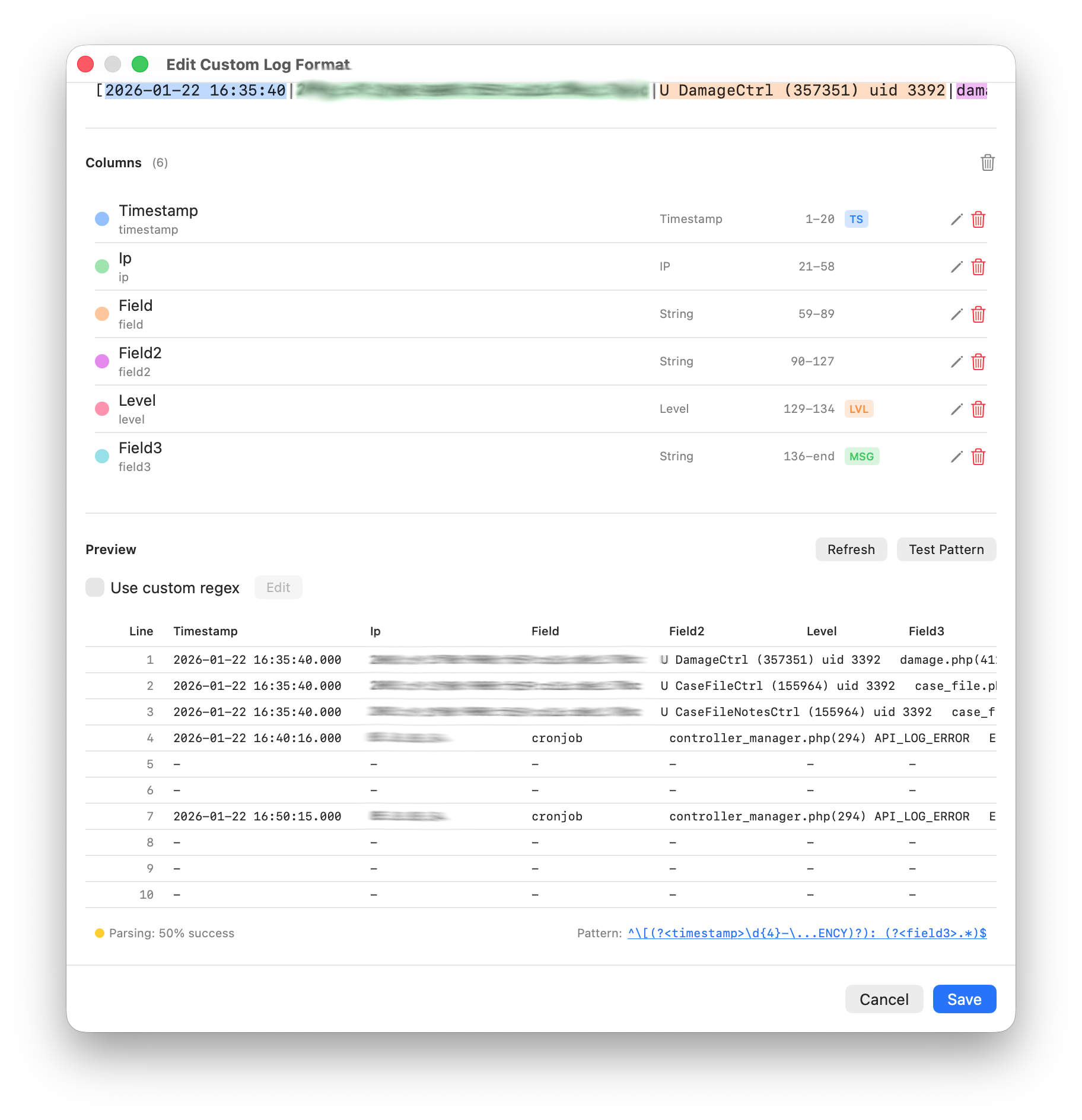
The preview includes:
- Preview table: Each sample line parsed into columns according to your definition
- Success rate: A percentage indicator (e.g., "Parsing: 50% success") showing how many sample lines were parsed successfully
- Generated pattern: The regex pattern that Logfile Expert generated from your column definitions
Use the Refresh button to update the preview after making changes. The Test Pattern button applies the current pattern to all sample lines and updates the results.
Custom Regex Editing
For advanced users, enable the Use custom regex checkbox to directly edit the generated regex pattern.
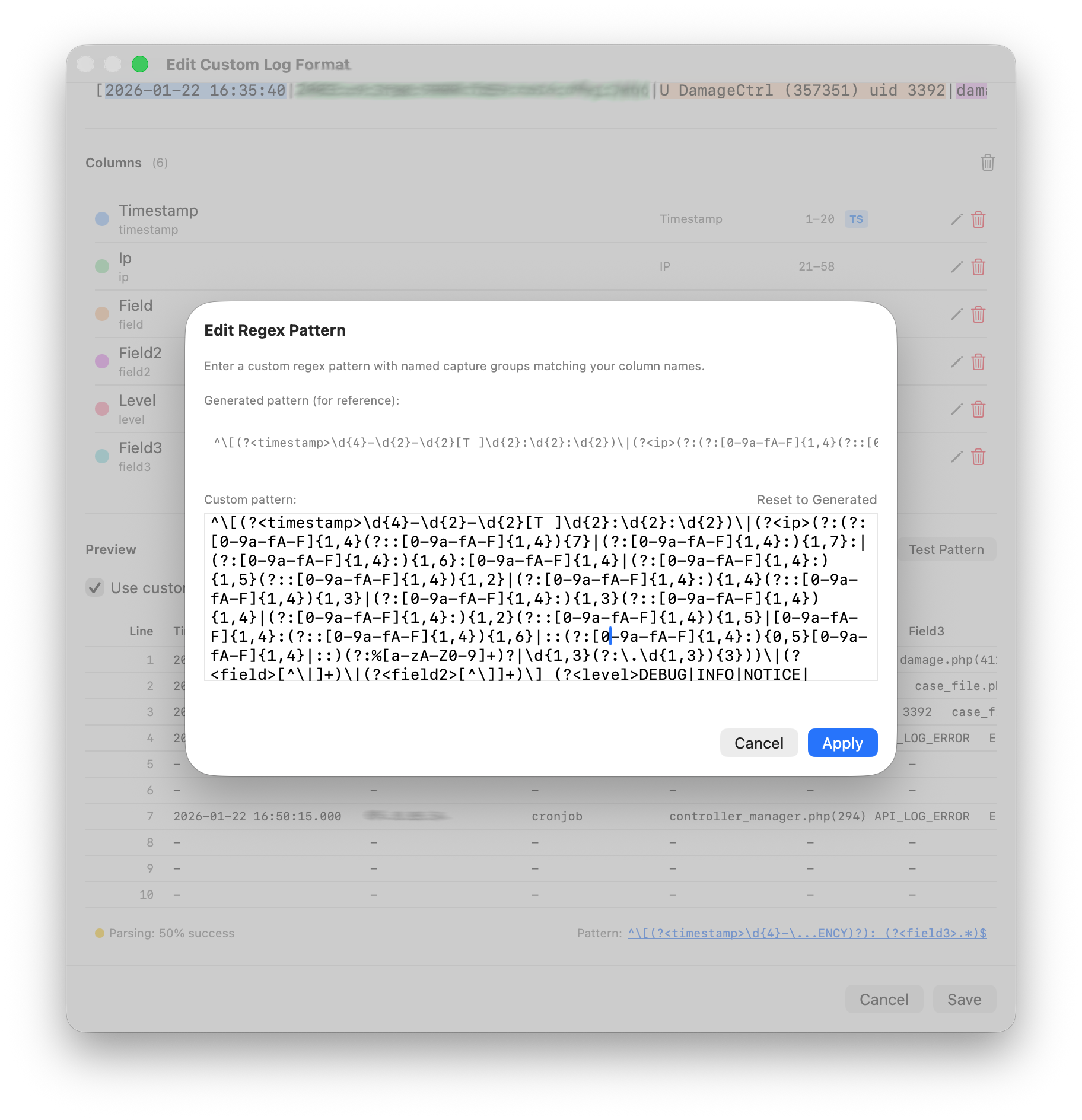
The regex editor dialog shows:
- Generated pattern (for reference): The auto-generated regex based on your column selections
- Custom pattern: Your editable regex pattern
- Reset to Generated: Reverts your custom pattern to the auto-generated one
Named capture groups in the regex must match your column names. For example, a column named "Timestamp" requires a capture group (?<timestamp>...) in the pattern.
Managing Custom Formats
Custom formats are managed in Preferences → Custom Formats.
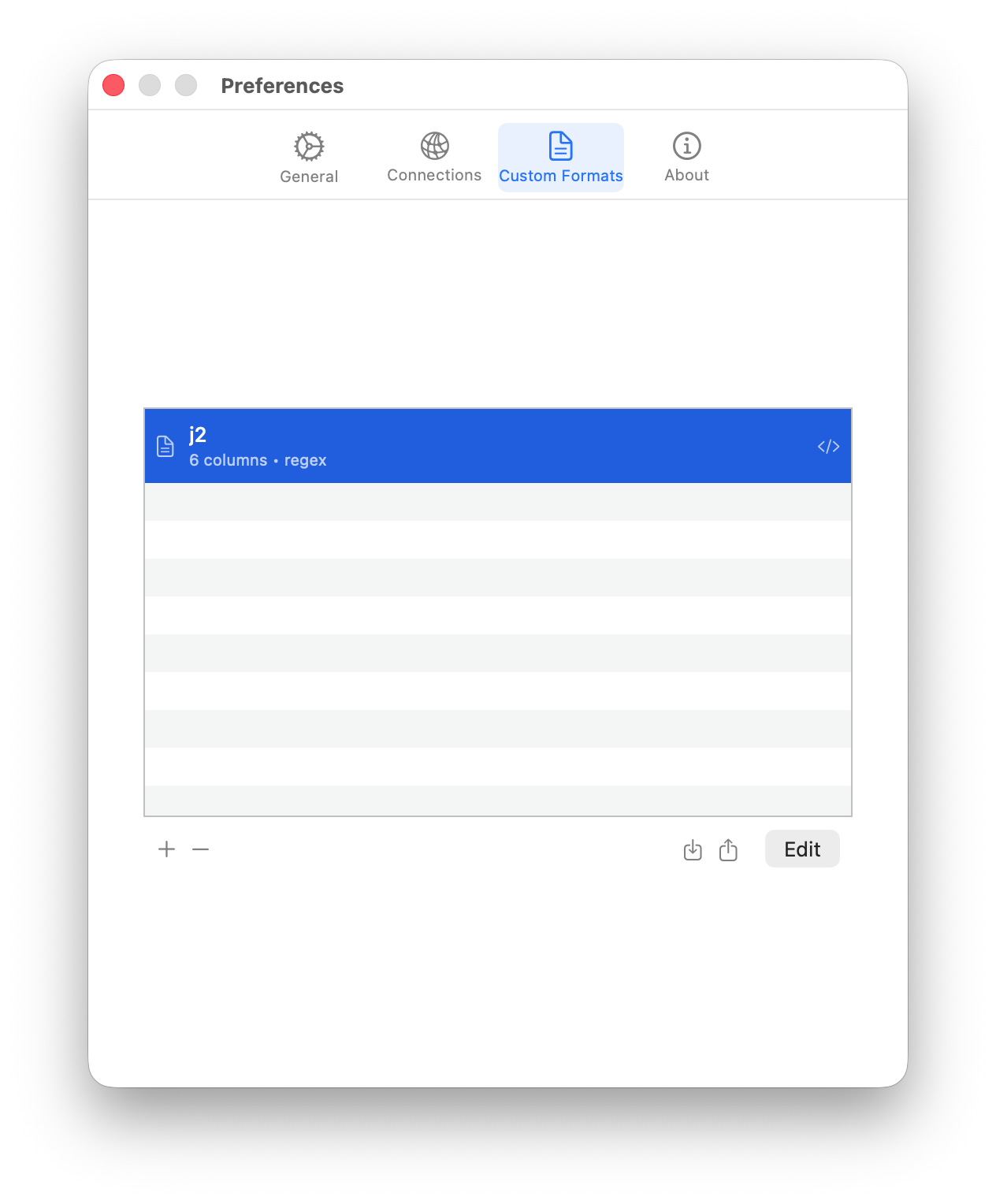
The list shows all saved custom formats with their name, column count, and parsing mode. Use the buttons below the list:
- + to create a new custom format
- − to delete the selected format
- Import (arrow down icon) to import a format definition from a
.logfileexpertfile - Export (arrow up icon) to export the selected format for sharing
- Edit to open the format editor for the selected format
Tips
- Start with a few representative sample lines that cover the variations in your log format
- Use the success rate indicator to check if your pattern handles all variations
- If the auto-generated regex doesn't match all lines, try the custom regex option to fine-tune it
- Export your custom formats as backup or to share them across machines
- Column order in the definition determines column order in the main window