Column Filters
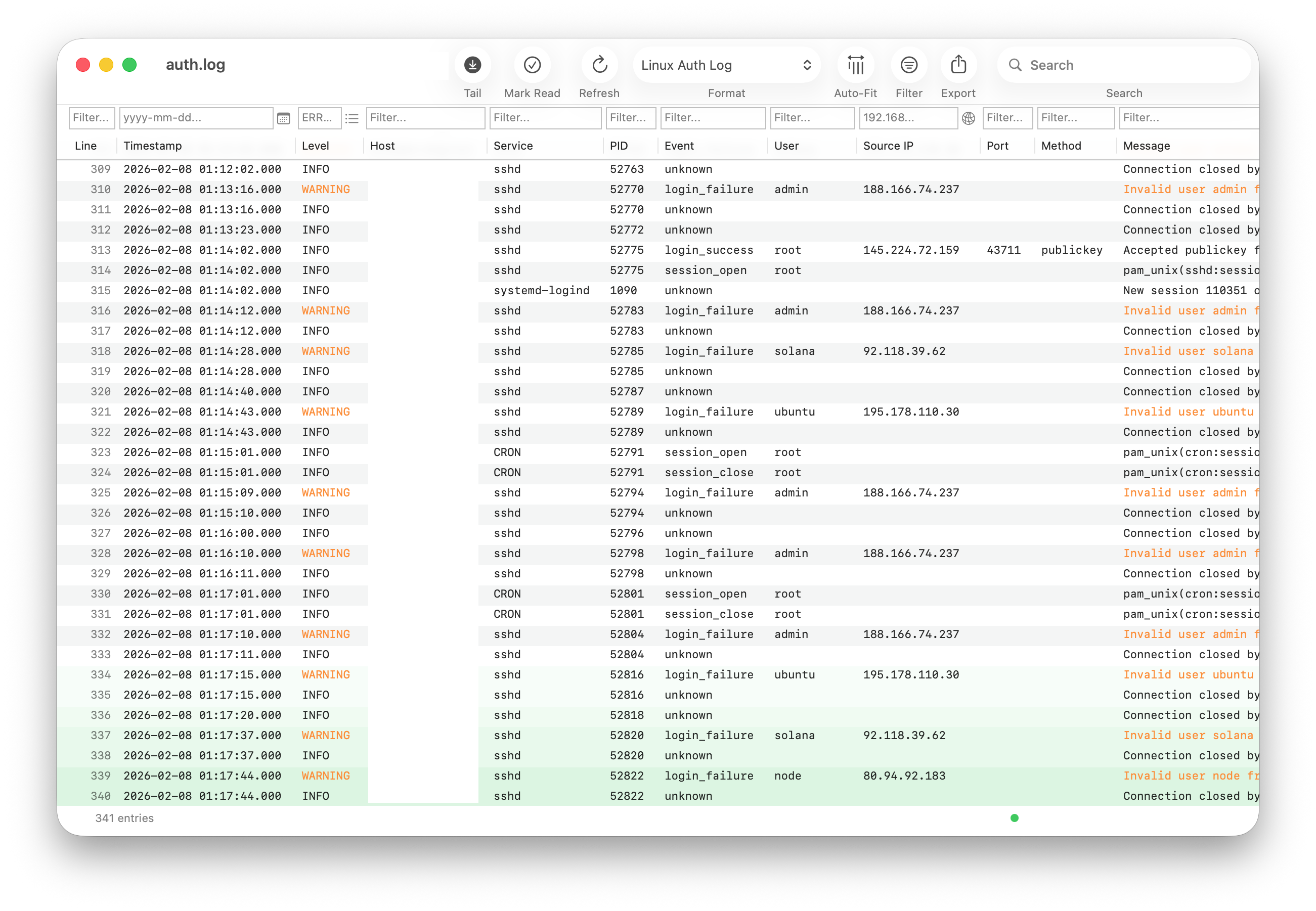
Logfile Expert provides a filter row directly below the column headers. Each column has its own text filter field, allowing you to filter by any field independently.
To show or hide the filter row, click the Filter button in the toolbar.
Text Filtering
Type in any column's filter field to instantly filter entries. The filter matches any entry where that column contains the typed text. Filtering is case-insensitive by default.
Advanced Text Filter Syntax
Text filters support a token-based syntax for more precise filtering:
- AND (space-separated):
error timeout— matches entries containing both "error" and "timeout" - OR (pipe-separated):
error|warning— matches entries containing "error" or "warning" - Starts with (caret prefix):
^sshd— matches entries where the column value starts with "sshd" - Escape character (backslash):
\|matches a literal "|",\^matches a literal "^"
Examples:
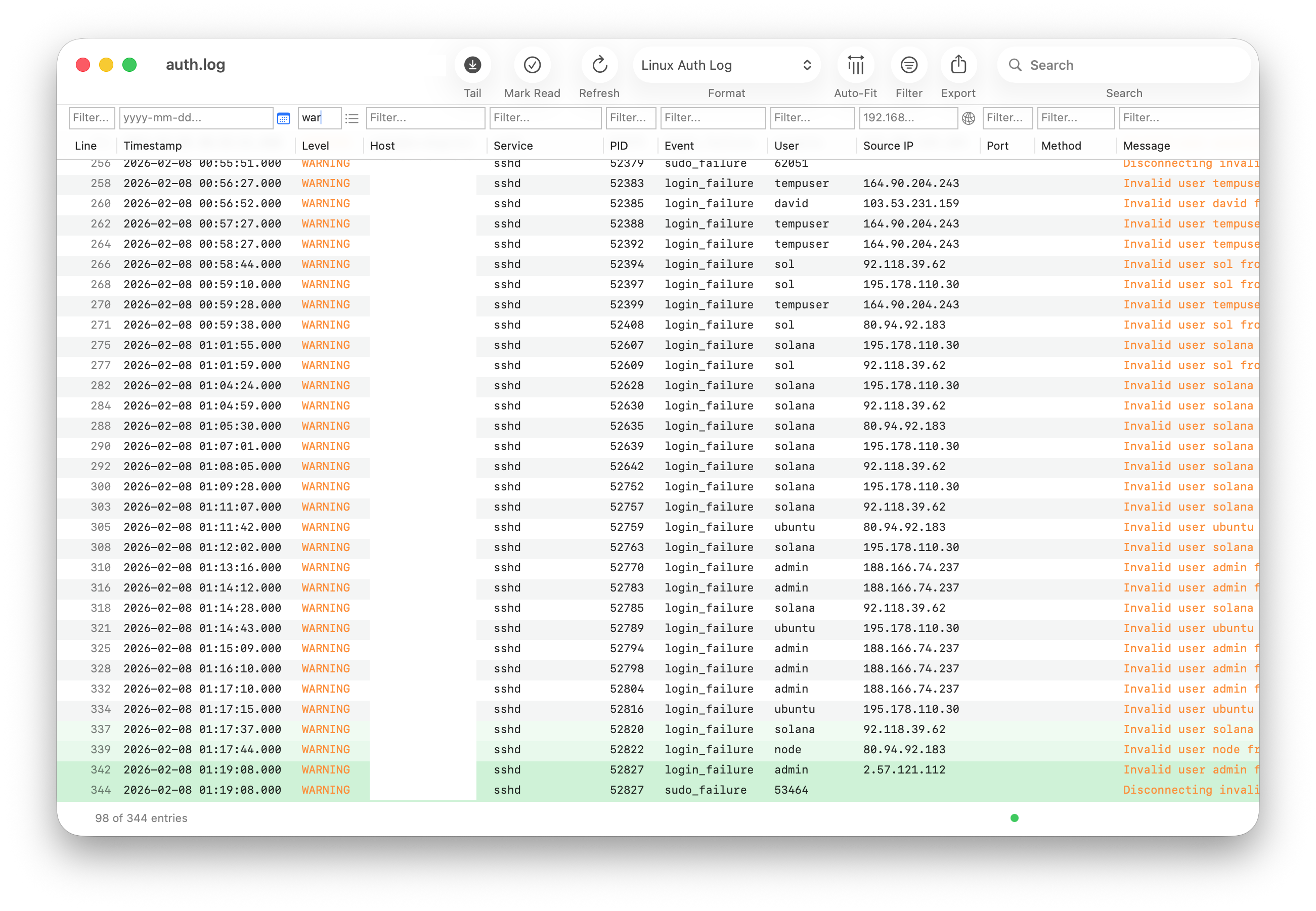
You can filter multiple columns simultaneously. For example, type "sshd" in the Service column and "login_failure" in the Event column to find all failed SSH login attempts.
Combining Filters
All active column filters are combined with AND logic. Only entries matching all active column filters are shown. The status bar shows the filtered result count (e.g., "88 of 344 entries").
Typed Column Filters
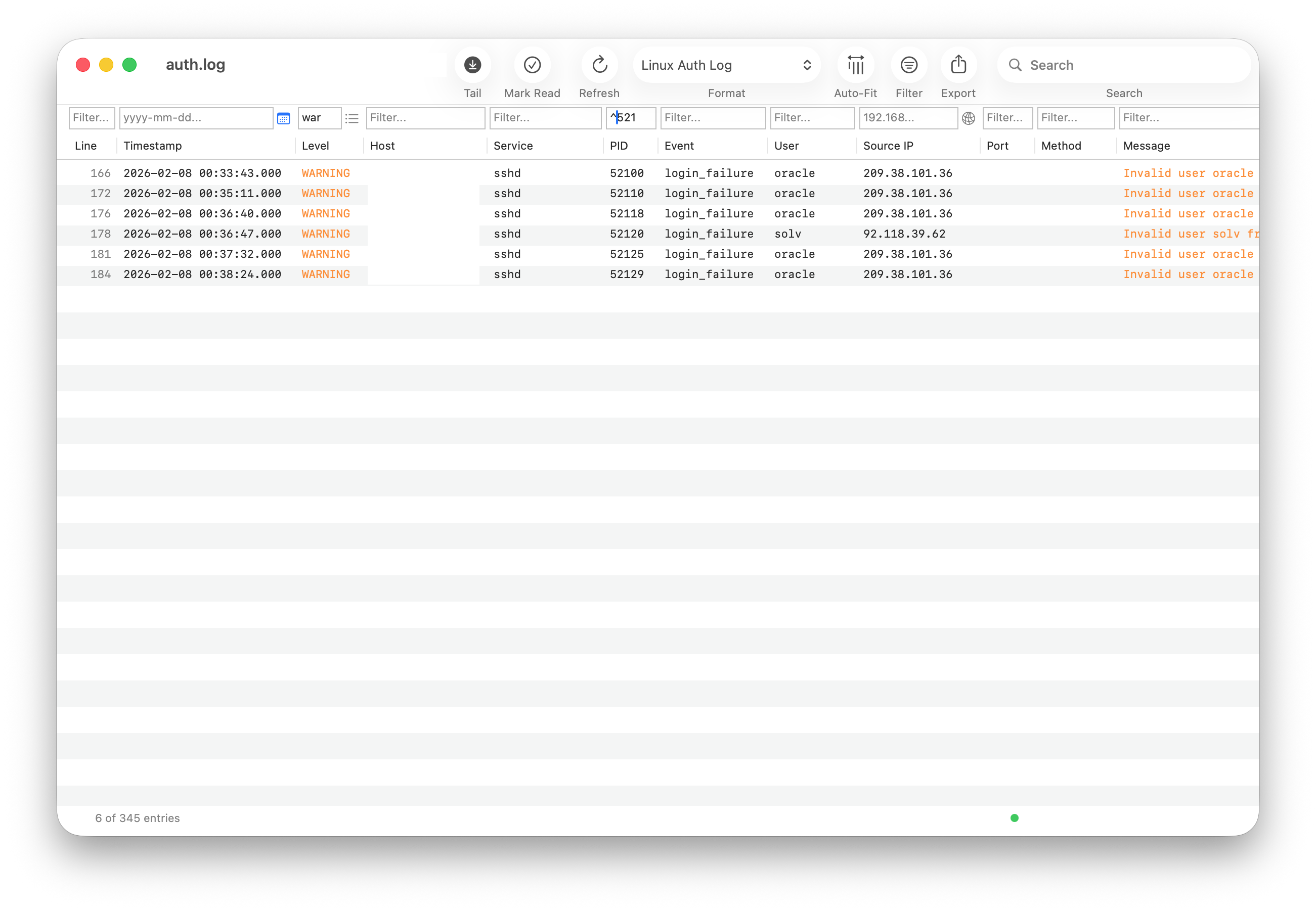
For columns with specific data types (Timestamp, Log Level, IP Address), Logfile Expert displays a small icon button next to the text filter field. Clicking this button opens a specialized filter popover for that data type.
Active typed filters are indicated by a blue icon button, while inactive ones appear gray.
Date/Time Range Filter
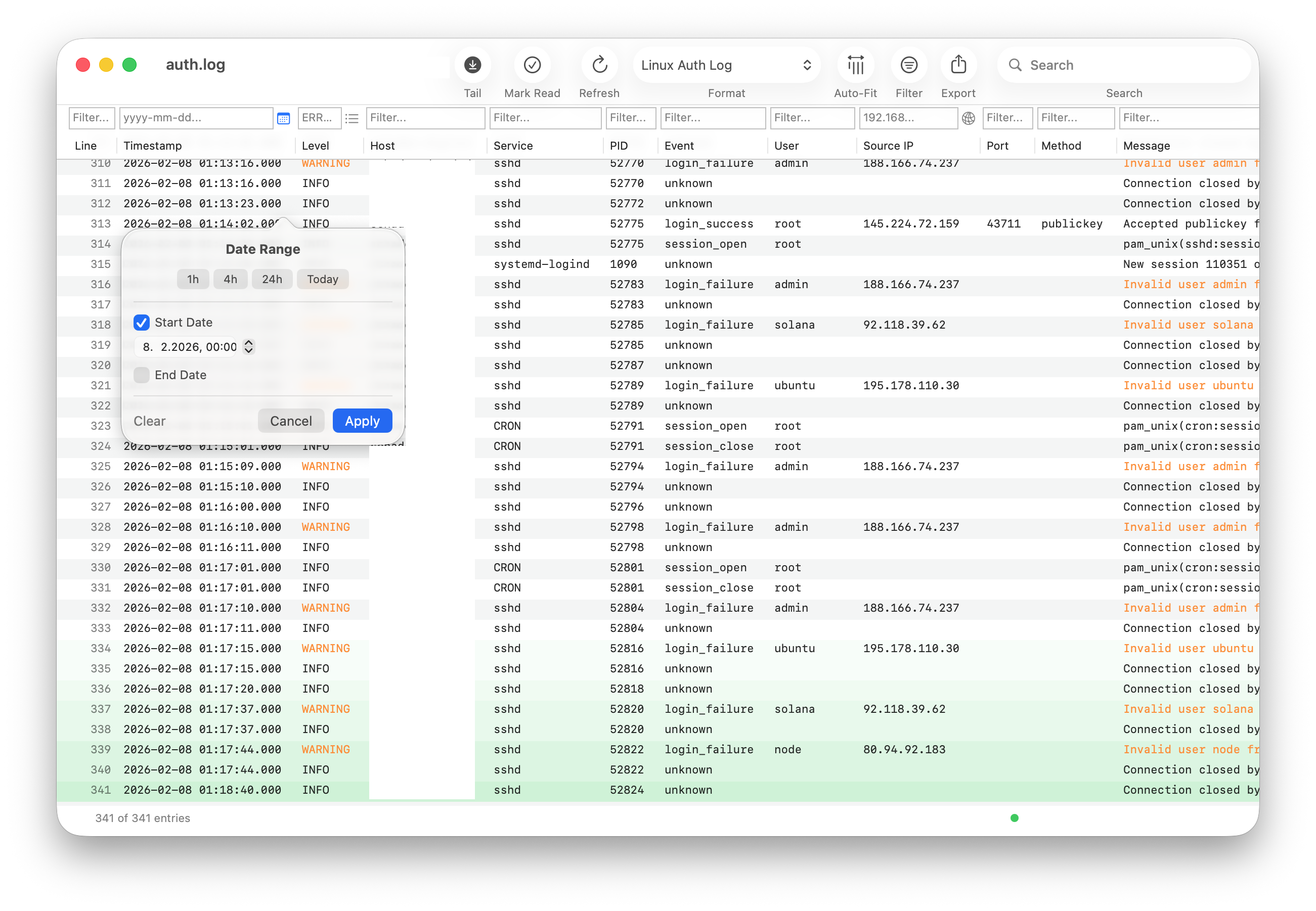
For Timestamp columns, the date filter popover lets you filter entries to a specific time range.
Quick Presets
Use the preset buttons at the top for common time ranges:
- 1h: Last hour
- 4h: Last 4 hours
- 24h: Last 24 hours
- Today: From midnight to now
Custom Date Range
For a custom range, enable the Start Date and/or End Date checkboxes and set the desired dates using the date pickers. You can use a start date only, an end date only, or both.
Click Apply to activate the filter, Clear to remove it, or Cancel to close without changes.
Log Level Filter
For Level columns, the log level popover lets you select which severity levels to display.
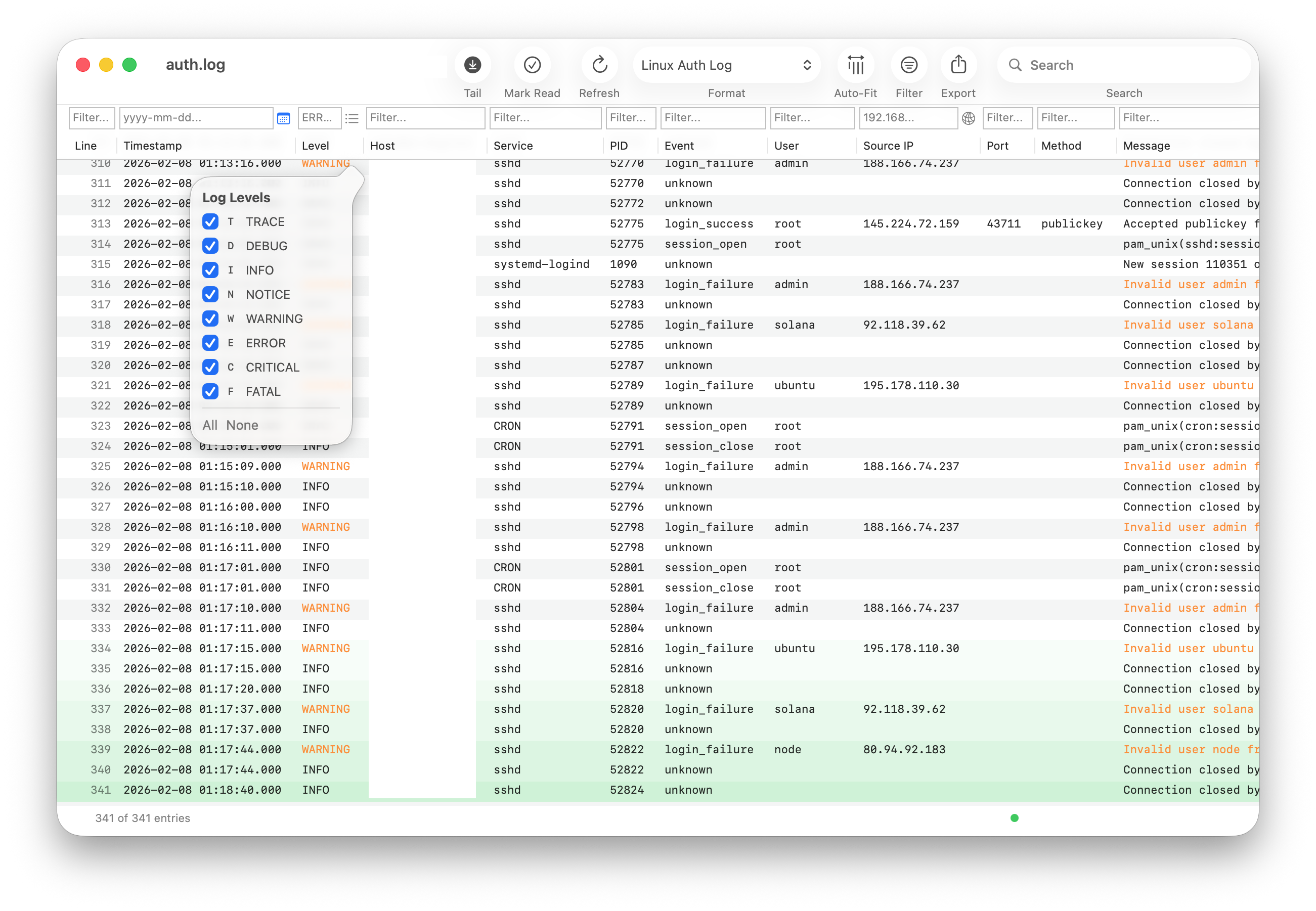
Available Levels
Logfile Expert recognizes these log levels:
- TRACE - Detailed trace messages
- DEBUG - Debug messages
- INFO - Informational messages
- NOTICE - Normal but significant conditions
- WARNING - Warning conditions
- ERROR - Error conditions
- CRITICAL - Critical conditions
- FATAL - Fatal errors
Selecting Levels
Check or uncheck individual levels to control which entries are shown. Use the All and None shortcuts to quickly select or deselect all levels.
Common Combinations:
- Errors Only: Uncheck all, then check ERROR, CRITICAL, FATAL
- Warnings and Errors: Check WARNING, ERROR, CRITICAL, FATAL
- Hide Debug Noise: Uncheck TRACE and DEBUG
IP Address Filter
For IP address columns, the IP filter popover lets you filter by specific addresses or network ranges.
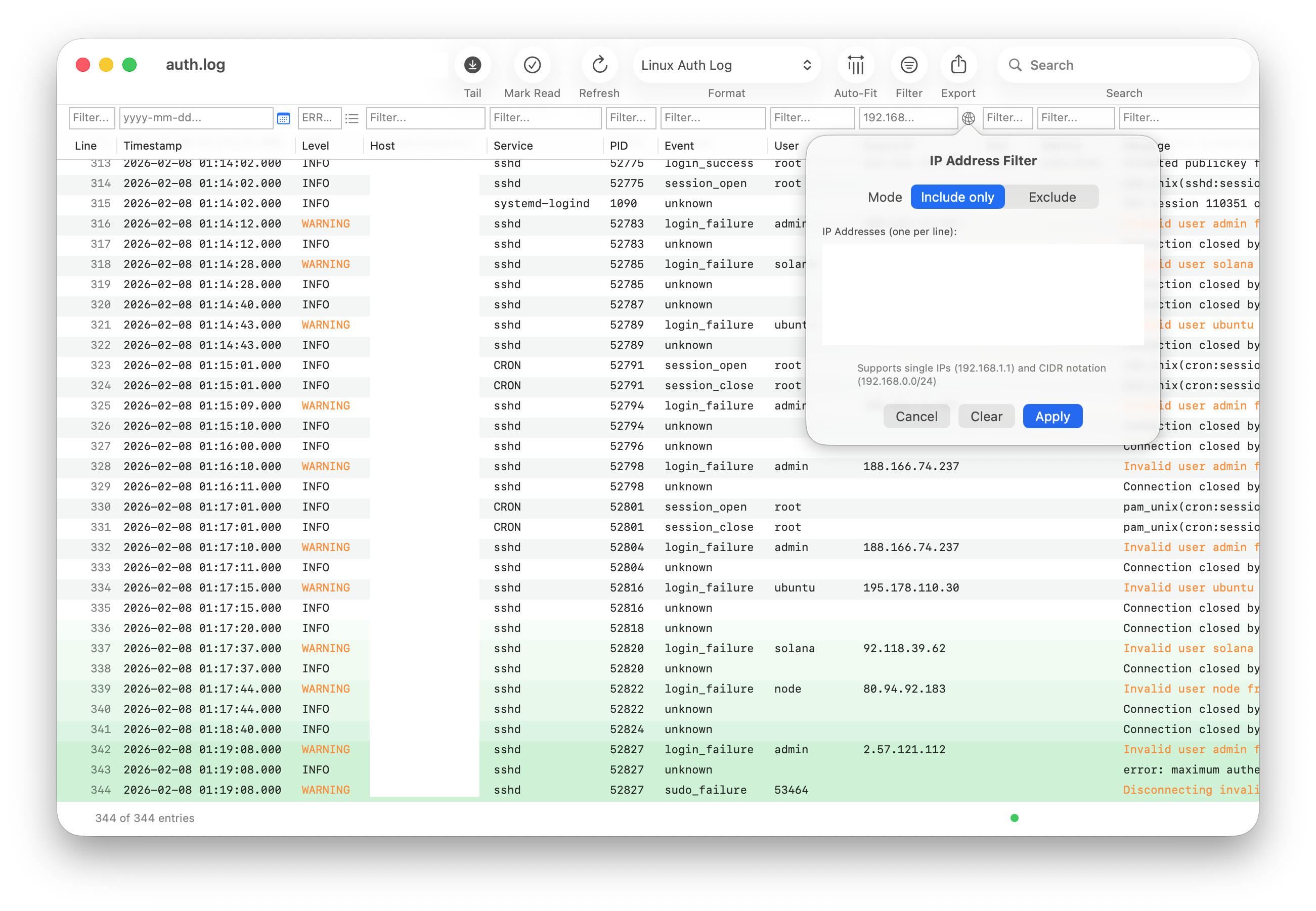
Filter Modes
Choose between two modes:
- Include only: Show only entries matching the specified IPs
- Exclude: Hide entries matching the specified IPs
Entering IP Addresses
Enter one IP address or network range per line:
Click Apply to activate the filter or Clear to remove it.
Search
The toolbar Search field provides a quick way to search across all columns. This is useful when you want to find a specific text regardless of which column it appears in.
Clearing Filters
To remove filters:
- Single column: Clear the text in that column's filter field
- Typed filter: Open the popover and click Clear
- All filters: Hide and re-show the filter row, or clear each field individually
Filter Status Indicator
When filters are active, the status bar at the bottom of the window shows the filtered count alongside the total (e.g., "6 of 345 entries"). Typed filter icon buttons also turn blue when their filter is active, making it easy to see which specialized filters are in use.