Multiple Windows
Logfile Expert supports opening multiple log files simultaneously, each in its own independent window.
- Each file opens in its own window with independent filters and settings
- Compare logs side by side (e.g., access log + error log)
- Monitor multiple servers simultaneously using remote connections
- Use macOS Split View or Mission Control to organize windows
Keyboard Shortcuts
File Operations
⌘O- Open local file⌘⇧O- Open remote file⌘W- Close window⌘Q- Quit application
View and Navigation
⌘R- Refresh/reload file⌘,- Open Preferences
Selection
⌘A- Select all visible entries⌘C- Copy selected entries
Exporting Data
Copy to Clipboard
Select entries and press ⌘C to copy. Entries are copied in tab-separated format, preserving column structure for pasting into spreadsheets or text editors.
Export
Click the Export button in the toolbar to export the current view (including any active filters) to a file.
Preferences
Open Preferences with ⌘, to configure Logfile Expert.
General
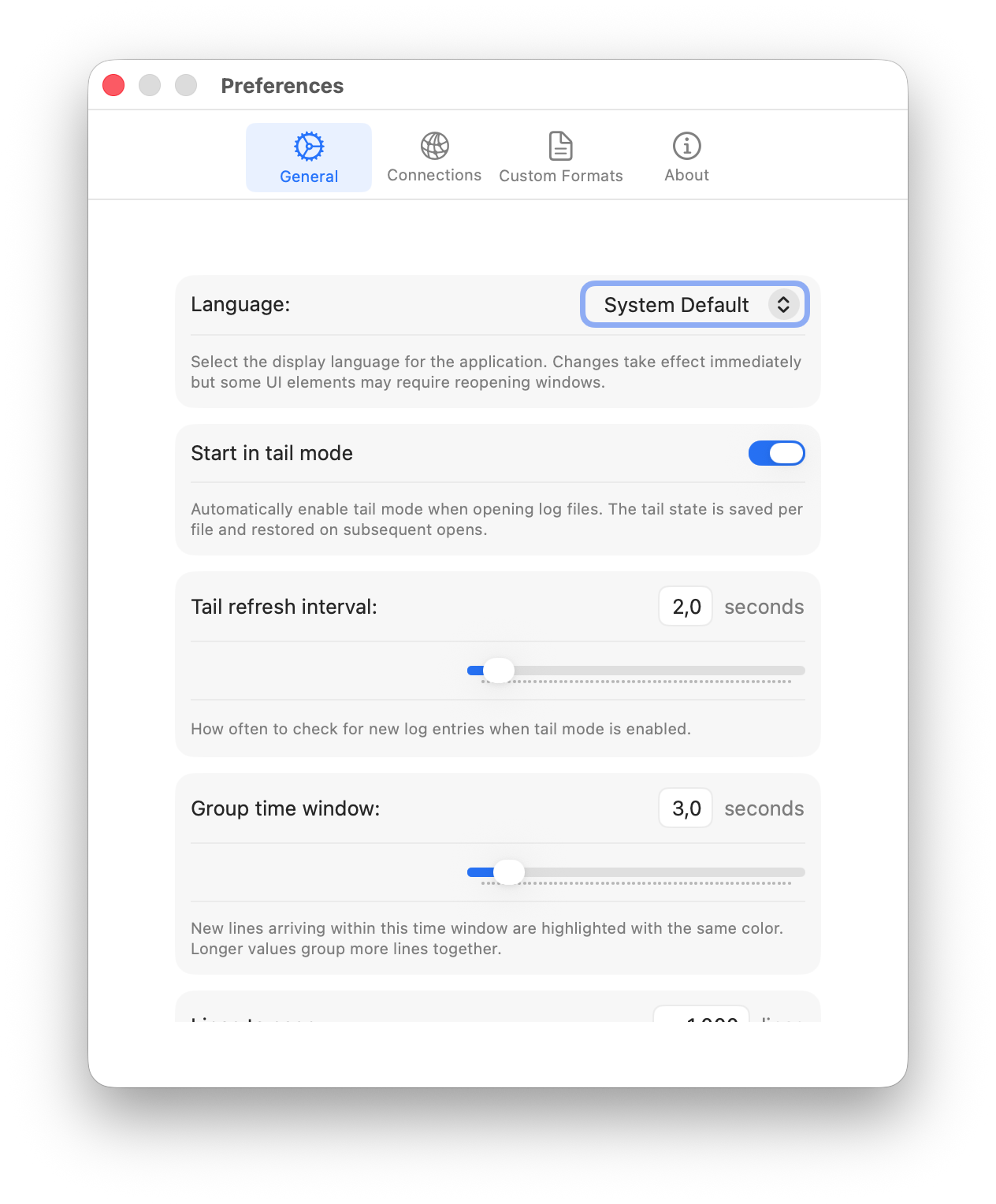
- Language: Select the display language. Changes take effect immediately, though some UI elements may require reopening windows.
- Start in tail mode: Automatically enable tail mode when opening log files. The tail state is saved per file and restored on subsequent opens.
- Tail refresh interval: How often to check for new log entries when tail mode is enabled (in seconds).
- Group time window: New lines arriving within this time window are highlighted with the same color. Longer values group more lines together.
Connections
Manage saved SFTP connections. See the Remote Files documentation for details.
Custom Formats
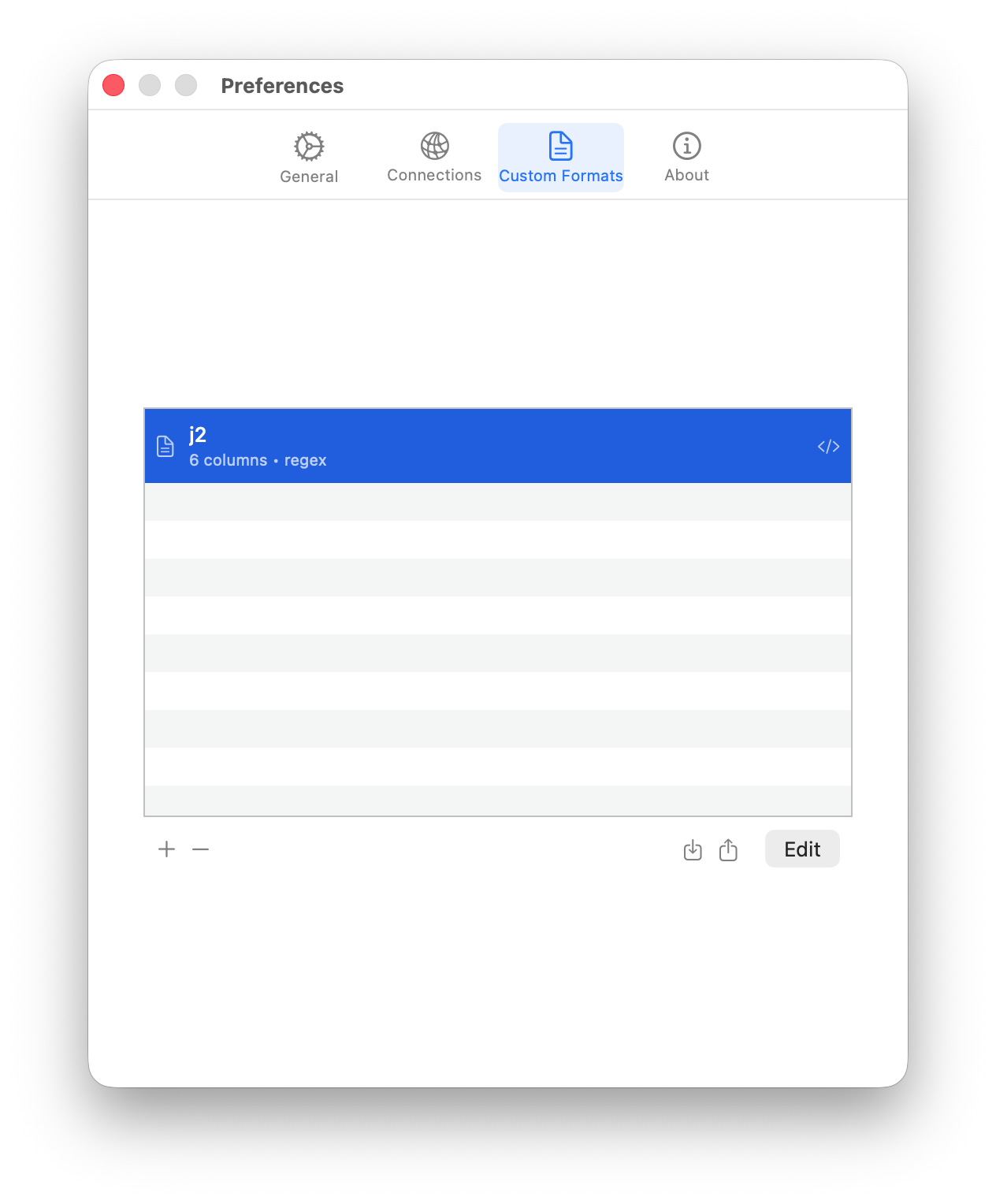
Manage custom log format definitions. See the Log Formats documentation for details.
About
Shows version information and a link to the Logfile Expert website.
Troubleshooting
File Won't Open
Problem: File fails to open or appears empty.
Solutions:
- Check file permissions (must have read access)
- Verify the file isn't corrupted or empty
- Try selecting a different format from the Format dropdown
Wrong Format Detected
Problem: Log entries aren't parsed correctly.
Solutions:
- Manually select the correct format from the Format dropdown in the toolbar
- Create a custom format if using a proprietary log format
Filters Not Working
Problem: Filters don't show expected results.
Solutions:
- Check that the filter row is visible (click the Filter toolbar button)
- Verify you're filtering the correct column
- For IP filters, ensure the syntax is correct (single IPs or CIDR notation)
- Clear all filters and reapply to start fresh
Tail Mode Not Updating
Problem: New entries don't appear automatically.
Solutions:
- Verify tail mode is enabled (Tail button in toolbar should be active)
- Check the refresh interval in Preferences → General
- For remote files, verify the connection is still active
- Try clicking Refresh to manually reload
Getting Help
If you need additional assistance:
- Support: Visit our support page
- Bug Reports: Include screenshots and steps to reproduce