Overview
Logfile Expert can connect to remote servers via SFTP (SSH File Transfer Protocol) to monitor log files without manual downloads or command-line access.
Benefits of remote access:
- No need to download files manually
- Tail mode (live monitoring) works just like local files
- Secure connection using SSH authentication
- Browse remote directories with a graphical file browser
- Monitor multiple servers simultaneously in separate windows
Creating a Connection
Step 1: Open Connection Dialog
Start the remote connection process:
- Click Open Remote in the Welcome dialog
- Or select File → Open Remote File
If you have saved connections, select one from the list. Otherwise, click + to create a new connection.
Step 2: Enter Connection Details
Fill in the New Connection form:
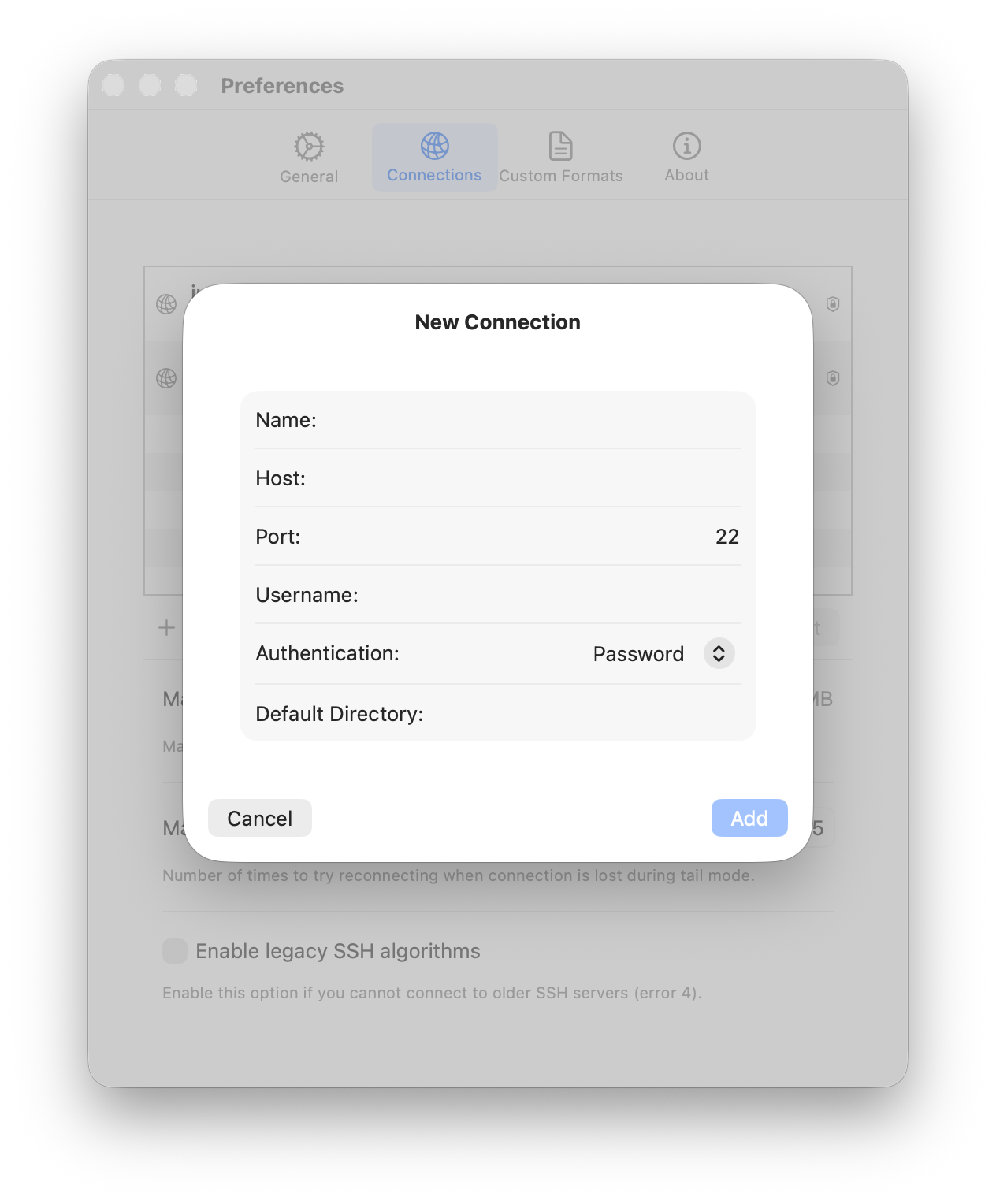
- Name: A descriptive name for this connection (e.g., "Production Server")
- Host: The server's hostname or IP address
- Port: SSH port number (default: 22)
- Username: Your SSH username
- Authentication: Choose between Password or SSH Key
- Default Directory: Optional starting directory when browsing (e.g.,
/var/log)
Click Add to save the connection and connect.
Authentication Methods
Password Authentication
Select Password from the Authentication dropdown. You will be prompted for your password when connecting.
SSH Key Authentication
Select SSH Key from the Authentication dropdown. Logfile Expert will use your SSH keys from the standard location (~/.ssh/). If your key has a passphrase, you will be prompted to enter it.
Browsing Remote Files
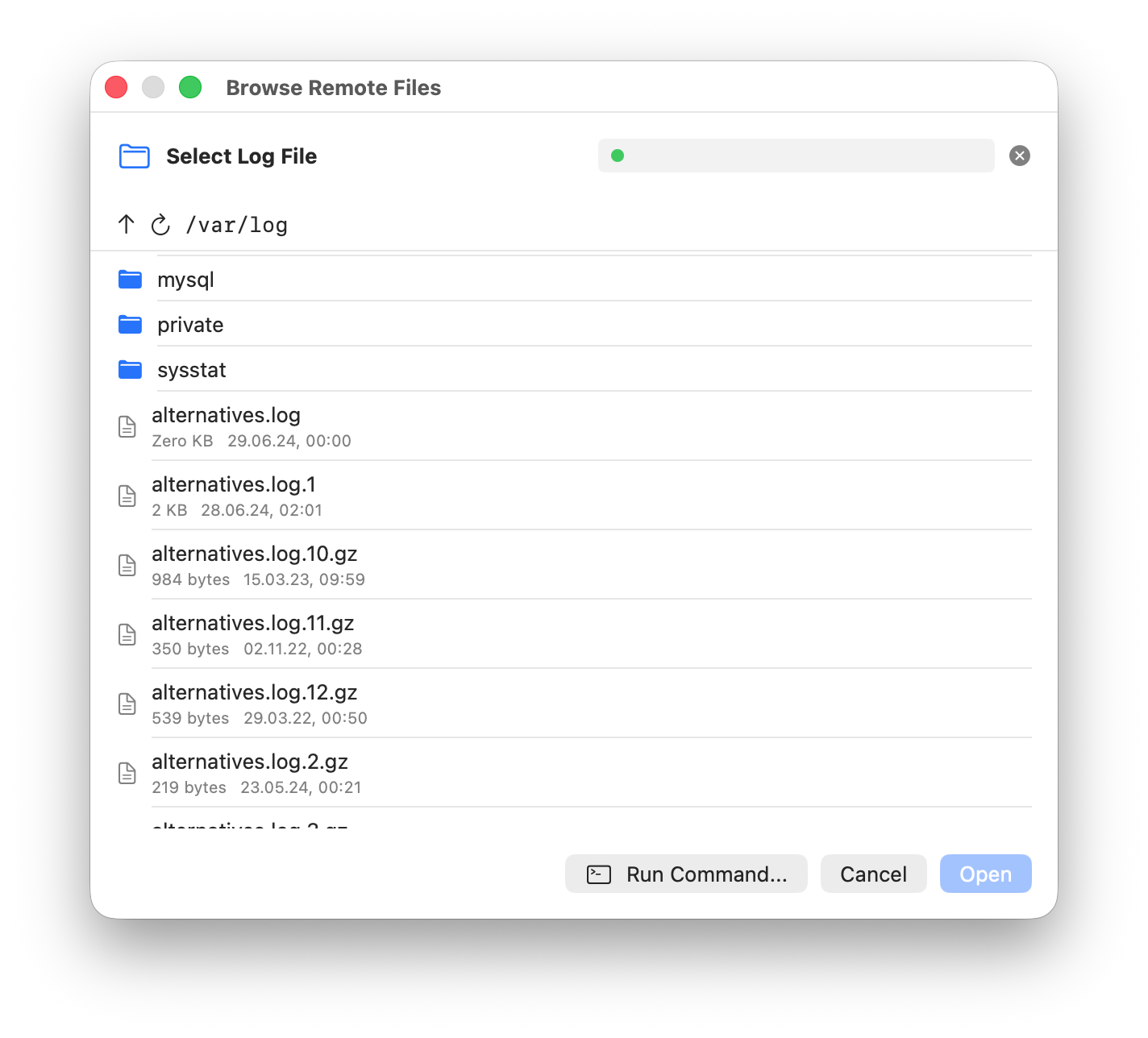
After connecting, the remote file browser appears. It shows the contents of the remote server's filesystem, starting from your configured default directory or the home directory.
Navigation
- Click folders to navigate into them
- Click the ↑ button to go up one directory
- Click the ↻ button to refresh the current directory listing
- Files show their size and modification date
Opening a File
Select a log file and click Open. The file is downloaded and opened in the main window, just like a local file. Format detection works the same way.
Run Command
Click Run Command... to execute a command on the remote server. This can be useful for tasks like decompressing log files before opening them.
Live Monitoring Remote Files
Tail mode works with remote files just like local files. Logfile Expert periodically checks the remote file for new content.
To enable tail mode, click the Tail button in the toolbar after opening a remote file. The refresh interval can be configured in Preferences → General.
Managing Connections
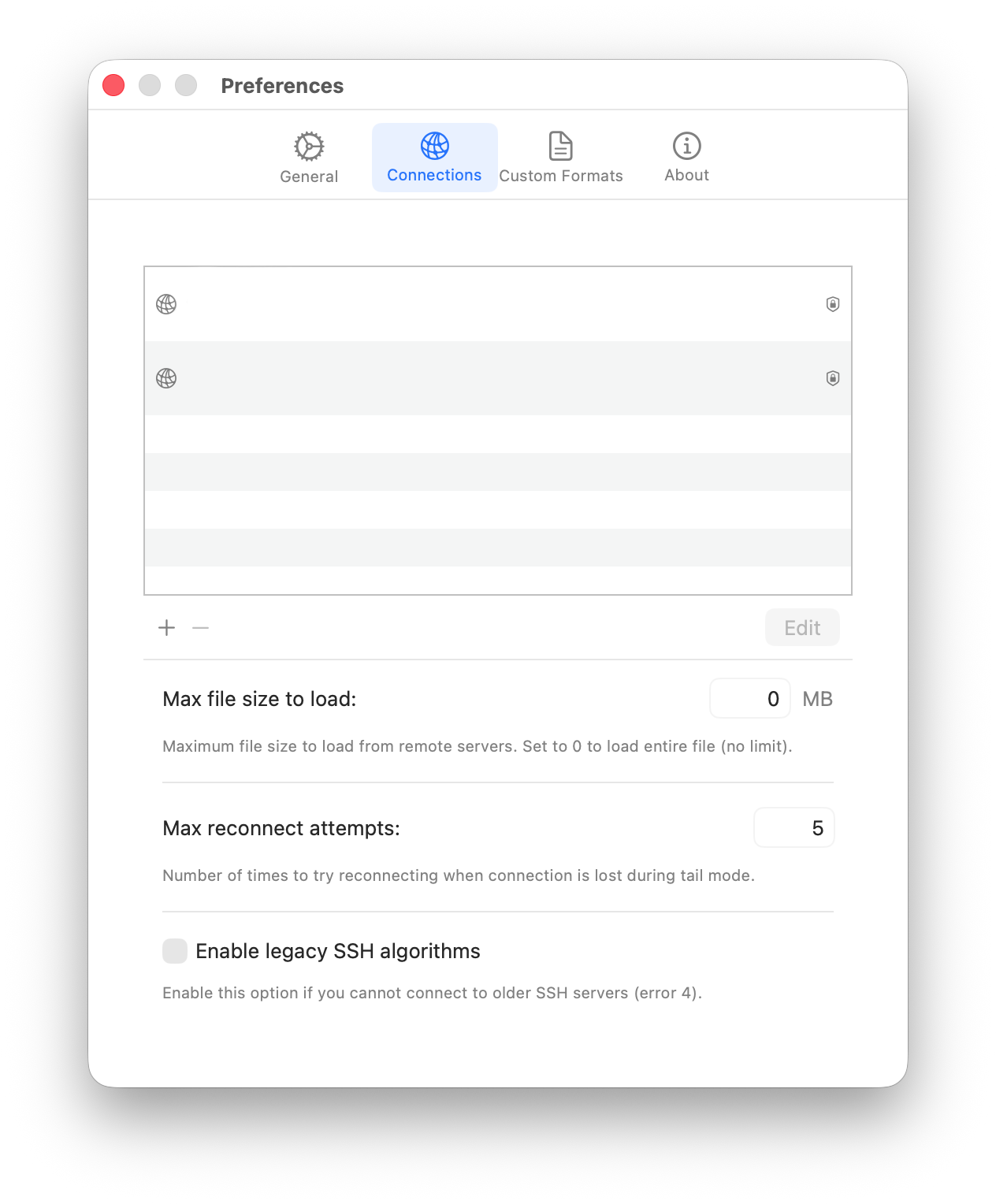
Saved connections are managed in Preferences → Connections.
Connection List
The connections list shows all saved connections. Use the buttons below the list:
- + to add a new connection
- − to remove a selected connection
- Edit to modify a selected connection's settings
Connection Settings
- Max file size to load: Maximum file size in MB to load from remote servers. Set to 0 for no limit.
- Max reconnect attempts: Number of times to try reconnecting when connection is lost during tail mode.
- Enable legacy SSH algorithms: Enable this if you cannot connect to older SSH servers (error 4). This allows older, less secure cryptographic algorithms.
Troubleshooting
Connection Timeout
Problem: Connection times out when trying to connect.
Solutions:
- Verify the hostname and port are correct
- Check if the server's firewall allows SSH connections
- Ensure your network allows outbound SSH (port 22)
- Try connecting with a standard SSH client to verify server accessibility
Authentication Failed
Problem: Authentication fails with correct credentials.
Solutions:
- Verify username and password are correct
- Check if SSH key file has correct permissions (should be 600)
- Verify the public key is in the server's
~/.ssh/authorized_keys - Try enabling Legacy SSH algorithms in Preferences if connecting to an older server
File Not Found or Permission Denied
Problem: Cannot open a specific log file.
Solutions:
- Use the file browser to navigate and verify the file exists
- Check that your user has read permissions on the file
- Some log files require root access — check with your server administrator